
Shopify POS: The Complete Guide (2026)
What Is Shopify POS, How POS Pro vs. Lite Compare, and What It Costs
TL;DR
Shopify POS is Shopify’s point-of-sale system for selling in physical locations (stores, pop-ups, markets) while keeping inventory, customer data, and sales reporting connected to your Shopify admin. Shopify offers two POS feature sets: the in-person selling features included with paid Shopify plans (often referred to as POS Lite) and POS Pro, an add-on subscription priced per location. POS Pro costs $89/month per location (USD pricing) and, for example, 339 PLN/month per location in Poland (pricing and billing terms vary by region/currency).
Note on the Retail plan: Shopify’s Retail plan isn’t available to new merchants. If you’re already on it, it includes one POS Pro location, and additional POS Pro locations can be added separately.
POS Lite (included with paid plans) covers essentials like taking in-person payments, basic customer profiles, and e-mail/SMS receipts. POS Pro adds advanced retail tools such as staff permissions/management and unlimited POS-only staff, custom printed receipts, more advanced inventory workflows, and professional retail reporting/analytics.
To get started with Shopify POS, you typically need a smartphone or tablet, plus a compatible card reader; optional hardware includes receipt printers, cash drawers, barcode scanners, and (optionally) the Shopify POS Terminal in supported markets. Hardware costs vary by region and setup - for example, Shopify card readers can start around $49 in the US, and receipt printers are often in the $289-$299 range (US examples).
In-person payment processing fees depend on your country and plan. For example, on Shopify’s Poland pricing page, card fees (Shopify Payments) start at 1.4% + 0.00 PLN in person on Basic, and Shopify also lists an extra fee when using external payment providers. Shopify supports Shopify Payments and integrations with 100+ third-party payment providers.
Refunds for POS Pro subscriptions are only available if you downgrade within specific timeframes (for monthly billing: within 7 days of the billing cycle start date; for annual billing: within 30 days of the annual billing date). If you want to uninstall the POS sales channel, you must downgrade all POS Pro locations first. After a POS Pro trial ends, you must manually select POS Pro to continue using it; otherwise, locations revert to the included in-person selling features.
Fast Navigation: Quick Answers
What is Shopify POS?
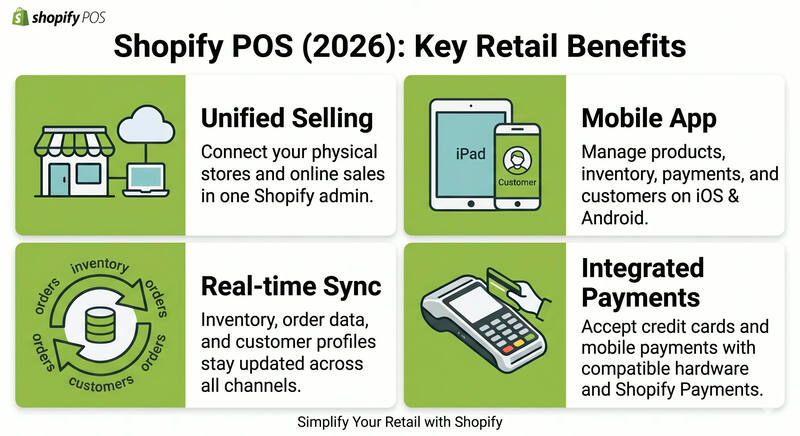
Shopify POS is Shopify’s point-of-sale app for selling in physical locations (stores, pop-ups, markets). It runs on iOS and Android devices, syncs with your Shopify admin, and helps you manage products, inventory, payments, customers, staff access, and reporting in one place. Shopify POS is available only on iOS and Android (not on laptops/desktops or Amazon Fire tablets).
What is Shopify POS Pro?
Shopify POS Pro is the paid POS upgrade that you add per retail location. On Shopify’s official POS pricing page, POS Pro is listed at an additional $89 USD/month per POS Pro location (pricing and currency may vary by region). POS Pro adds advanced retail features, including staff roles and permissions, richer customer profiles/insights, returns and exchanges at any location, deeper inventory management, and professional retail reporting.
What is Shopify POS Lite?
“POS Lite” commonly refers to the in-person selling features included with every Shopify paid plan (i.e., there’s no extra add-on fee for the baseline POS feature set). It supports digital receipts (e-mail/SMS) and printed receipts if you have a compatible receipt printer. However, advanced printed-receipt customization and certain printing options are available only for locations on POS Pro.
How much does Shopify POS cost?
Your total Shopify POS cost is typically:
- Your Shopify plan (for example, on Shopify’s POS pricing page, Basic is shown as starting at $39 USD/month on monthly billing in the US),
- Payment processing fees (vary by country and plan; in the US, examples shown on the same page, in-person card rates start at 2.6% + 10¢ on Basic, 2.5% + 10¢ on Grow, and 2.4% + 10¢ on Advanced),
- Optional POS Pro add-on per location (+$89 USD/month/location),
- Optional hardware (one-time purchases). For example, Shopify’s Tap & Chip card reader is listed at $49 (US), and a receipt printer (e.g., Epson TM-m30III) is listed at $289 (US) in the Shopify Hardware Store.
How many stores/locations can Shopify POS connect?
It’s more accurate to talk about Shopify “locations” (not “connection slots”). The official Shopify Help Center states the maximum number of active locations depends on your plan: Starter: 2; Basic: 10; Grow: 10; Advanced: 10; Shopify Plus: 200.
What Is Shopify POS?
Shopify POS (Point of Sale) is Shopify’s point-of-sale system for selling products in person while keeping sales, inventory, and customer data synchronized with your Shopify admin. It runs as a mobile app on iOS and Android devices and can connect to optional hardware such as card readers, receipt printers, and barcode scanners. Shopify POS is designed for brick-and-mortar retail, supporting day-to-day store operations alongside your online store.
The core idea is simple: one product catalog, one inventory, one back-end, regardless of where a sale happens. A merchant selling shoes online and in two physical stores doesn’t manage three separate systems. Every transaction, whether on the website or at the in-store counter, flows through a single Shopify admin. Shopify POS supports omnichannel selling, helping retailers deliver a consistent experience across in-store and online channels.
However, Shopify POS is built to work with a Shopify store. It isn’t meant to be a universal POS that you can “plug into” other e-commerce platforms out of the box. If you need Shopify to exchange data with external platforms or back-office systems, that typically requires installing third-party apps in Shopify or building custom integrations.
Key fact: Shopify POS isn’t a separate platform you run independently. You enable Point of Sale in your Shopify admin and use the Shopify POS app for in-store selling, while your Shopify store remains the place where you manage products, inventory, customers, and account settings (even if you don’t actively sell online).
Availability note: Shopify is used globally, but Shopify POS availability depends on whether Shopify supports in-person payment providers in a given country. For example, Shopify POS is currently unavailable in China.
What Makes Shopify POS Different From Other POS Systems?
Most traditional POS systems operate as separate platforms from your e-commerce store. Keeping them aligned can require third-party integrations (or middleware) and additional operational work to reconcile inventory, customer data, and reporting. Shopify POS reduces that complexity because it’s built into the Shopify ecosystem: inventory updates can sync across channels, customer profiles are unified, and reporting is consolidated in one admin.
Shopify has published claims such as up to 37% lower total cost of ownership, 21% lower training and onboarding costs, and 20% faster implementation time for retailers using Shopify POS, but results vary by business and setup.
What Does POS Stand For and How Does It Apply Here?
POS stands for Point of Sale, referring to the place where a customer completes a purchase. In retail, the POS is often the checkout counter. In Shopify’s context, POS refers to the full in-person selling setup: the Shopify POS app, compatible hardware, and related workflows that let you take payments and manage in-store sales while staying connected to your Shopify operations.
How Does Shopify POS Work?
Shopify POS is a cloud-based point-of-sale app. You run it on a supported iOS or Android device (for example, an iPad, iPhone, or Android phone/tablet), and it connects to your Shopify admin over the internet to pull product data and sync orders, inventory, and customer information.
When a staff member scans a barcode at checkout, Shopify POS retrieves the product details from your Shopify catalog. When a sale or return is completed, the order is recorded in Shopify and inventory is adjusted for the location that made the sale, so your team can see up-to-date on-hand quantities across locations and channels (when the device is online).
Important nuance: Shopify POS syncs with your Shopify admin when the device is connected. If you go offline, you can still complete some types of sales, but Shopify POS can’t sync orders and inventory to the admin until you reconnect. When you’re back online, orders and inventory should sync automatically (and you can also manually force a sync).
What Devices Can Run Shopify POS?
Shopify POS works only on iOS and Android devices. It does not run on laptops or desktop computers, and it’s not supported on Amazon Fire tablets.
Instead of saying “any iPad/iPhone,” it’s more accurate to say “supported devices,” because Shopify lists minimum requirements. For example, Shopify POS supports iPhone 7 or newer running iOS 15.1+ and iPads running iPadOS 15.1+ (with minimum generations depending on the model), as well as Android phones/tablets running Android 10.0+ with Google Mobile Services enabled.
Many merchants use an iPad as a main POS device for a larger screen, and a phone for mobile checkout on the shop floor.
Hardware example
A small store might start with one supported tablet and a card reader, then add receipt printers, barcode scanners, and cash drawers as it grows. Shopify sells compatible hardware through the Shopify Hardware Store in certain countries (availability varies by region).
If you want a concrete example, Shopify lists its Tap & Chip card reader at $49 in the US hardware store (prices vary by country).
How Does Inventory Sync Work Across Locations?
Shopify tracks inventory by location. Each location has its own on-hand quantity for a product variant, and sales made at a specific location reduce that location’s inventory. Other locations’ quantities remain unchanged, which is why you can be sold out in one store but still have stock in another.
Online availability depends on your location, fulfillment settings, and routing rules. In multi-location setups, a product can still appear “out of stock” online if the location(s) that fulfill online orders have zero inventory - even if another location has stock but doesn’t fulfill online orders.
From the POS app, staff can check stock at other locations and help customers find where an item is available.
Shopify’s built-in inventory tools in the Shopify admin and Shopify POS support key workflows such as transfers between locations, purchase orders, inventory adjustments, and inventory history reporting. Store staff can also manage certain inventory workflows directly in Shopify POS.
Key fact: Shopify POS staff can continue selling a product even when tracked inventory reaches zero (Shopify POS warns staff before they sell an item that isn’t available). This is separate from the “Continue selling when out of stock” setting in Shopify Admin, which applies to online sales channels and does not apply to Shopify POS.
Shopify POS Lite vs. POS Pro: What Is the Difference?
Shopify offers two POS feature sets. The in-person selling features that come with every paid Shopify plan (often referred to as “POS Lite”) are included at no extra cost. Shopify POS Pro is a paid add-on that you enable per retail location when you need more advanced retail workflows. You can mix both within the same business by upgrading only the locations that need POS Pro.
Whether POS Pro is worth it usually comes down to how complex your store operations are: Do you need staff roles and tighter permission control? Do you offer omnichannel fulfillment options like buy online, pick up in store? Do you want advanced retail reporting and workflows built specifically for permanent retail locations?
At-a-glance feature comparison (POS Lite vs. POS Pro)
In-person selling features included with a paid Shopify plan (“POS Lite”)
- In-store selling: Yes
- Mobile selling (pop-ups, events): Yes
- Inventory and order syncing across online and in-person sales (when online): Yes
- Shopify Payments + compatible payment hardware (availability depends on country: Yes
- Non-payment retail hardware integrations (for example, scanners/printers where supported): Yes
- Customizable smart grid: Yes
- Customer profiles (add/edit): Yes
- Customer View app: Yes
- Multi-location inventory, orders, and customer management: Yes
- E-mail/SMS receipts: Yes
- Printed receipts: Yes, but advanced printed-receipt features are limited compared to POS Pro
- Refunds: Yes
Shopify POS Pro (add-on per location)
- Everything above, plus:
- Custom printed receipts: Yes
- Automatic discounts (in POS): Yes
- Retail staff permissions and management: Yes
- Unlimited POS-only staff accounts (POS-only users): Yes
- Exchanges (in POS): Yes
- Saved carts (save/retrieve cart): Yes
- E-mail carts: Yes
- Ship to home: Yes
- Ship and carry out: Yes
- Pickup in store (BOPIS): Yes
- Local delivery fulfillment: Yes
- In-app retail store analytics and daily sales reports: Yes
Pricing
POS Lite costs $0 as an add-on (it’s included with your paid Shopify plan). POS Pro is priced per location, and the amount varies by region and currency (for example, Shopify lists POS Pro at +330 PLN/month per location in Poland).
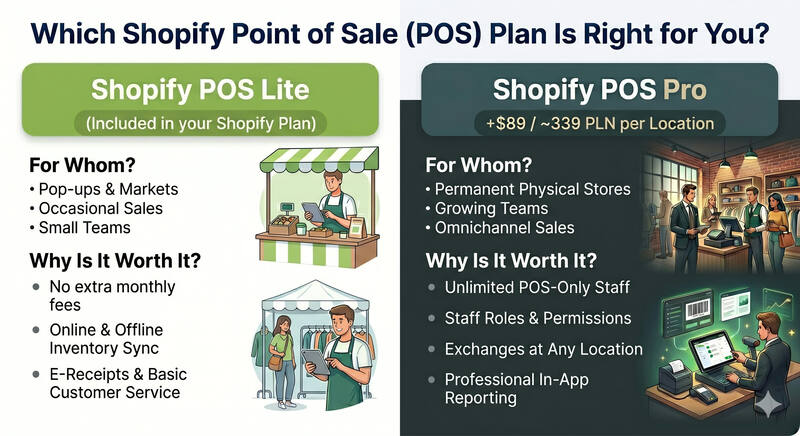
Key fact: Most core in-person selling features are available with the in-person selling features included in Shopify’s paid plans (often referred to as “POS Lite”). Shopify POS Pro is a per-location add-on that unlocks advanced retail workflows and controls that are most relevant for staffed stores, including POS roles and permissions (only available for POS Pro locations) and the ability to add unlimited POS app-only staff for POS Pro locations
Selecting the right Shopify POS plan matters because the feature set can directly affect how you manage staff, fulfillment workflows, and reporting in a physical store.
Who Should Stay on Shopify POS Lite?
POS Lite is a good fit if you sell in person occasionally (for example, pop-ups, markets, seasonal events) or you run a small retail setup that doesn’t require advanced POS-only staff management, custom POS permission sets, or omnichannel fulfillment features like buy online, pick up in store. POS Lite is included with Shopify’s paid plans, so you can start selling in person without paying an additional POS subscription fee (beyond your Shopify plan and any optional hardware).
Admin user/staff account limits depend on your Shopify plan, and POS Pro’s main staff-related advantage is unlimited POS app-only staff for Pro locations.
Who Should Upgrade to Shopify POS Pro?
POS Pro is designed for permanent retail stores that need more advanced day-to-day store operations in Shopify POS. Upgrade a location to POS Pro if you need things like:
- POS roles and granular POS permissions, so you can control what staff can do in the POS app (for example, restricting refunds, discount actions, or cash tracking). POS roles/permissions are available only for POS Pro locations.
- Unlimited POS app-only staff (POS-only users) for the POS Pro location.
- Advanced omnichannel fulfillment workflows in POS, such as buy online, pick up in store, local delivery fulfillment, and ship-to-customer from store (these are presented by Shopify as Pro features).
- Retail-focused reporting and in-app analytics for store operations (Shopify positions these as Pro-level capabilities).
- Exchanges and other advanced in-store workflows (Shopify highlights exchanges as Pro features).
If a staff member can log into both POS Pro and POS Lite locations, their POS role and restrictions apply only when they use their PIN at POS Pro locations. When they log into POS Lite locations, POS roles don’t apply - so you can’t rely on POS roles to restrict actions in Lite.
Important: Managing multiple locations is not “enabled by POS Pro” in the sense of increasing your location limit. Location limits are determined by your Shopify plan (for example, Basic/Grow/Advanced: 10 locations; Plus: 200). POS Pro is an add-on you apply per location to unlock Pro features at that location - it doesn’t raise the location limit.
Partial payments are not a POS Pro-only capability. Shopify documents “multiple and partial payments” as a Shopify POS feature (accepting a partial payment and collecting the remaining balance later).
Shopify POS Pricing: Full Cost Breakdown
Understanding the total cost of Shopify POS means looking at three layers: (1) your Shopify subscription, (2) optional POS Pro add-ons (if needed), and (3) payments + hardware. One-time setup and ongoing operational costs (like training, integrations, or device management) can also matter, depending on how complex your retail operation is.
Cost components (prices vary by country, currency, and billing cycle)
- Shopify subscription (required)
You need a paid Shopify plan to use Shopify POS for in-person selling.
Example monthly pricing in USD that Shopify publishes in its own content:
- Basic $39/month
- Grow $105/month
- Advanced $399/month
- Shopify Plus from about $2,300/month (contract terms apply).
Example monthly pricing shown on Shopify’s Poland POS pricing page:
- Basic 109 PLN/month
- Grow 319 PLN/month
- Advanced 1,630 PLN/month.
- POS software
POS Lite (baseline in-person selling features): included with your paid Shopify plan (no extra add-on fee).
POS Pro (advanced retail feature): an add-on priced per retail location.
- Shopify lists POS Pro at $89/month per location on its main POS pricing page (amount and currency vary by region).
- In Poland, Shopify shows POS Pro as +339 PLN/month per POS Pro location, billed annually.
About annual billing: Shopify does promote a “POS Pro yearly” program (discounts and incentives can apply, depending on eligibility and terms).
- POS hardware (one-time purchases; optional, can vary a lot)
You can often use an existing iPhone/iPad/Android device and add only the hardware you need. Shopify sells compatible hardware in the Shopify Hardware Store (availability and pricing vary by country).
Example US hardware prices from Shopify’s Hardware Store:
- Tap & Chip card reader: $49
- Shopify POS Terminal (countertop reader with display): $349
- Cash drawer (example listing): $139
- Receipt printer (Epson TM-m30III example): $289
- Barcode scanner (Zebra DS2208 example): $199
Important notice: You could have found, while browsing the internet, information about POS Go, but they are outdated. Shopify states POS Go is no longer available for sale (legacy devices are supported only until September 2026).
- Payment processing fees (ongoing, variable)
Processing fees depend on your country, plan, and whether you use Shopify Payments or a third-party provider.
Examples shown on Shopify’s Poland POS pricing page (Shopify Payments): in-person rates start at 1.4% + 0.00 PLN on Basic, 1.3% + 0.00 PLN on Grow, and 1.2% + 0.00 PLN on Advanced.
For US merchants, Shopify’s own hardware product pages indicate rates can start at 2.6% + $0.10 (exact rates depend on plan and setup).
If you use a third-party payment provider instead of Shopify Payments, Shopify charges an additional transaction fee (Shopify lists 2% on Basic, 1% on Grow, and 0.6% on Advanced on its pricing FAQ).
Key fact: POS Pro is billed per location. Upgrading a location to POS Pro unlocks the Pro feature set for that location. Hardware is typically a one-time purchase. The highest variable cost over time is payment processing, which depends on your region and plan.
How Does Shopify POS Pricing Compare by Business Size?
These are illustrative examples using common US monthly figures (exclude taxes and any promos; local pricing can differ):
- Solo merchant doing pop-ups: Basic plan ($39/month) plus a $49 card reader. Total recurring software cost: $39/month (plus processing fees).
- One permanent store: Grow plan ($105/month) plus one POS Pro location ($89/month). Total recurring software cost: $194/month (plus processing fees).
- Eight stores: Advanced plan ($399/month) plus POS Pro for 8 locations ($89 x 8 = $712/month). Total recurring software cost: $1,111/month (plus processing fees).
Shopify has published a claim of “22% lower total cost of ownership on average” compared to competitors (context and methodology matter, and results vary).
What Are the Location Limits by Shopify Plan?
Shopify’s Help Center defines limits as the maximum number of active locations, which depends on your plan:
- Starter: 2 locations
- Basic: 10 locations
- Grow: 10 locations
- Advanced: 10 locations
- Shopify Plus: 200 locations
What Hardware Does Shopify POS Support?
Shopify POS hardware can be grouped into two buckets: (1) payment hardware (card readers/terminals used with Shopify Payments) and (2) retail peripherals (receipt printers, cash drawers, barcode scanners, etc.). Some items are sold through the Shopify Hardware Store (availability and pricing vary by country), and other supported devices can be purchased from third-party sellers.
Most merchants start with a supported iOS/Android device plus a card reader, and then add peripherals (printer, cash drawer, scanner) as they grow.
Shopify card readers and payment hardware (models differ by country)
United States
- Shopify Tap & Chip Card Reader (US only) - $49 (US Hardware Store example). Supports major card networks and mobile wallets (availability varies).
- Shopify Tap & Chip Card Reader with Dock (US only) - $89 (US Hardware Store example).
- Shopify POS Terminal - a countertop reader with customer-facing touchscreen display - $349 (US Hardware Store example).
Canada
- WisePad 3 Card Reader - $69 (Canada Hardware Store example).
- Shopify POS Terminal is also available in Canada (availability depends on region).
Europe / Asia-Pacific (high level)
In many European countries and several Asia-Pacific markets, Shopify lists the WisePad 3 as a supported card reader (and, in some Asia-Pacific markets, as a POS Terminal). Always validate your market on Shopify’s “supported card readers” list.
Cash drawers
In the US Shopify Hardware Store, cash drawers are listed at $139 (example listings). Prices vary by region and model.
Receipt printers
- Epson TM-m30III receipt printer: $289 (US example).
- Star mC-Print3 Bluetooth thermal receipt printer: $299 (US example).
Shopify maintains an official list of supported receipt printer models by region.
Barcode scanners
Shopify confirms you can scan both 1D and 2D barcodes with the phone/tablet camera.
For dedicated scanners, Shopify lists supported options such as Socket Mobile scanners and the Zebra DS2208, and also notes that any HID barcode scanner can work.
Current Shopify Hardware Store examples:
- Zebra DS2208 (with stand): $199 (US example).
- Socket Mobile S720 with dock: $289 (US example.
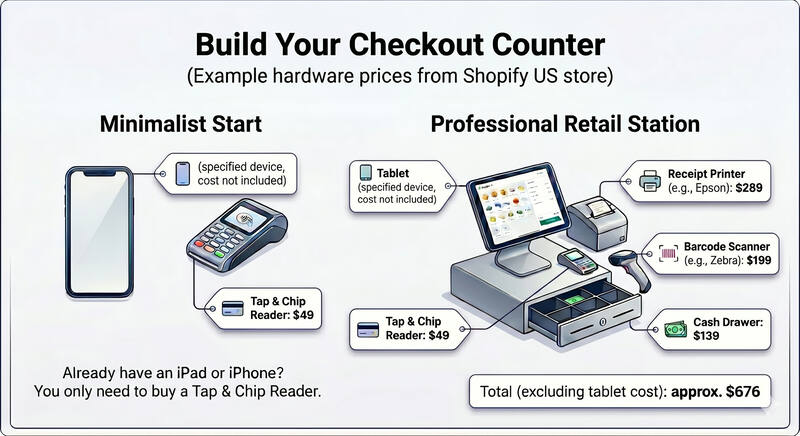
Key fact: A minimal Shopify POS setup can be as simple as a supported iPad (or iPhone/Android device) plus a compatible card reader. For example, in the US, Shopify lists its Tap & Chip Card Reader at $49, and once Shopify Payments is set up and the reader is paired, you can start accepting in-person chip and contactless payments. (In other countries, the supported reader model and price can be different.)
A fully equipped fixed checkout station (card reader + receipt printer + barcode scanner + cash drawer) often lands in the mid-hundreds in hardware spend, depending on the models you choose and the country you buy in. Using current US Hardware Store examples: $49 (card reader) + $289 (receipt printer) + $199 (barcode scanner) + $139 (cash drawer) = about $676, before tax/shipping and without the cost of the tablet itself.
Can You Use Third-Party Card Readers With Shopify POS?
Yes, but it’s important to clarify what “use” means.
- Shopify-supported card readers (integrated payments)
If you want the payment to be processed directly inside Shopify POS (with the transaction automatically recorded in the order timeline), you need a Shopify-supported card reader and Shopify Payments, and you must be in a supported country.
- External/third-party terminals (not integrated, but supported as a workflow)
If you prefer (or must use) a different payment provider, you can use an external card terminal to take payment outside of Shopify. In that setup, the terminal processes the card transaction, and then you record the payment in Shopify POS by creating and using a custom payment type and tapping “Mark as paid.” Shopify can show payment status, but it won’t include detailed transaction data from the terminal, and staff must confirm the external payment succeeded.
Practical tip
You don’t need a “POS payment gateway integration” for this. The common approach is simply: charge the customer on the external terminal, then complete the sale in Shopify POS using a custom payment type and mark it as paid.
How to Set Up Shopify POS: Step-by-Step
A basic, single-location Shopify POS setup is usually quick. For many merchants, the main work is confirming products, inventory by location, and payments - rather than any heavy technical configuration.
Setup checklist
- Create (or log into) your Shopify account
If you’re new to Shopify, set up your store and add your products first. Choose your Shopify plan based on the features you need and how many locations you plan to run.
- Enable the Point of Sale sales channel
In your Shopify admin, go to Settings and open the sales channels section (Apps and sales channels / Sales channels, depending on your admin layout). Add or open “Point of Sale” to enable in-person selling features.
- Download and log into the Shopify POS app
Install Shopify POS from the Apple App Store or Google Play on a supported iOS/Android device. Log in with your Shopify account and select the store/location you’ll use on that device.
- Set up your store location(s) and assign inventory
In Shopify admin, add your retail location(s) and make sure inventory is assigned to the correct location. If you operate multiple stores, set up each location and its inventory separately.
- Review product availability for Point of Sale (don’t “manually add products” unless you need to restrict them)
By default, when you add a sales channel, existing products are generally available to that channel. If you don’t want certain items to be sold in person, remove “Point of Sale” from the product’s availability. You can also make specific products available only on POS if needed (for example, POS-only items).
- Set up payments and pair your hardware
If you use Shopify Payments and a supported card reader, pair it in the Shopify POS app and run a quick connectivity check. If you’ll use a receipt printer, barcode scanner, or cash drawer, pair/test each device as well.
- Configure receipt settings (digital and printed)
Decide whether you’ll offer e-mail/SMS receipts, printed receipts, or both, and confirm printer settings if you’re printing.
- Add staff and set permissions (POS Pro feature for POS roles)
Create staff accounts in Shopify admin as needed. If you’re using POS Pro at a location, set up POS roles and permissions so you can control what staff can do inside the POS app. If you use POS Lite locations, be aware that POS roles don’t apply there.
- Configure your Smart Grid (available on both Lite and Pro)
Customize the Smart Grid with shortcuts that match your workflow (products, discounts, customer search, etc.). If you use embedded/installed POS apps, you can also add app tiles to the Smart Grid so staff can access key app actions directly from the Home screen.
- Run a test checkout flow end-to-end
Before launch day, do a low-value test sale (and a refund), test barcode scanning, test receipt printing/e-mailing, and confirm the sale lands correctly in Shopify admin. If you do a live card transaction, keep in mind you may still incur processing fees even if you refund.
Key fact: Shopify POS doesn’t require a separate platform or separate login - everything is managed through Shopify admin and the Shopify POS app, so many merchants can be ready to sell in person the same day they set up their location, inventory, and payments.
What Are Common Mistakes When Setting Up Shopify POS?
- Misunderstanding product availability
Some merchants assume products must be “added” to POS manually, or they forget to remove POS availability for items that shouldn’t be sold in-store. Review product availability settings early.
- Skipping location and inventory setup
If inventory isn’t assigned correctly per location, stock counts and availability can be wrong - especially in multi-location setups.
- Not testing hardware and payments before launch
Pair and test card readers, printers, scanners, and cash drawers ahead of time, including refunds and receipt delivery.
- Not planning staff access properly
If you need role-based controls inside the POS app, plan for POS Pro at the locations where you need it. POS roles and permissions apply only at POS Pro locations; POS Lite locations don’t enforce POS roles for admin users.
- Ignoring country-specific compliance requirements
Compliance rules for POS can vary by country. For example, Germany has TSE/KassenSichV requirements, and Shopify provides a TSE (KassenSichV) app to help with compliance and required exports/declarations. If you operate in regulated markets, confirm requirements with a local accountant or compliance advisor and verify the specific Shopify apps/workflows you need.
- Not training staff on fixing checkout errors
A common real-world issue is staff not knowing the correct process for handling mistakes (refunds, cancellations, returns, and - if you use POS Pro - exchanges). Train on these flows before day one so errors don’t turn into customer-facing delays.
Key Facts Block: Shopify POS Data at a Glance
POS Lite price: No extra add-on fee. The baseline in-person selling features are included with Shopify’s paid plans (plan prices vary by country/currency).
POS Pro price: Paid add-on per location. Shopify lists Shopify POS Pro at $89/month per location on the Shopify POS app listing (USD billing).
Regional example (Poland): Shopify’s POS pricing page shows +339 PLN/month for each POS Pro location.
Hardware cost range (examples, varies by country and setup):
- Card reader (US example): Shopify Tap & Chip Card Reader is listed at $49.
- Receipt printer (US example): Epson TM-m30III is listed at $289.
- Cash drawer (US example): cash drawers are listed at $139.
- Barcode scanner (US example): Zebra DS2208 is listed at $199.
Tap to Pay note: In supported countries, you can accept contactless payments using Tap to Pay on iPhone or Android in Shopify POS, which can reduce the need to buy a separate card reader if you already have a compatible phone. Availability depends on country and device requirements.
Payment processing (in-person): Rates vary by country and plan, and Shopify publishes “starting at” rates on its local pricing pages.
Example (Poland): Basic starts at 1.4% + 0.00 PLN in person; Grow 1.3% + 0.00 PLN; Advanced 1.2% + 0.00 PLN.
Location limits: Shopify talks about “locations”. Limits depend on your plan: Starter 2, Basic 10, Grow 10, Advanced 10, and Plus 200.
Staff accounts:
- Shopify admin user limits depend on the Shopify plan (for example, Grow shows 5 staff accounts and Advanced 15 on Shopify’s pricing page in some regions).
- POS Pro advantage: you can create an unlimited number of POS app-only staff for POS Pro locations, and POS roles only apply at POS Pro locations.
Supported devices: Shopify POS works on iOS and Android devices (not laptops/desktops).
Offline functionality: Shopify POS requires an internet connection to sync with the Shopify admin, send email receipts, and capture card payments in the standard flow. If you lose connection, Shopify POS offers offline features to continue sales, and Shopify provides an “offline payments” capability that lets you save card payments for processing after you reconnect (subject to settings/eligibility).
Implementation/training/middleware claims: Shopify has published claims such as 20% faster implementation and 21% lower training/onboarding costs per retail store, and a reduction in the need for middleware by up to 60% (context and results vary).
Shopify Payments availability: Availability for Shopify Payments (and especially in-person processing) varies by country. In some markets, Shopify Payments can be online-only; for example, Shopify’s Hong Kong documentation states it isn’t available for in-person (POS) processing, and you must use an external terminal for in-person payments.
Real-World Examples: Who Uses Shopify POS and How
These examples are based on published customer stories and partner write-ups. Treat them as illustrative (each business’s results depend on its industry, store operations, integrations, and staffing).
Pepper Palace: Scaling from 40 to 100+ Stores
Pepper Palace, a specialty hot sauce retailer, migrated to Shopify POS in 2019. In Shopify’s customer story, the brand reports scaling from 40 to over 100 store locations after the move, and rolling out Shopify online and across 40 store locations in about two months. The core theme is operational centralization: store and online orders, inventory, payments, and customer data are managed in one place, which helps teams operate and report across many locations without relying on heavy IT resources.
Bared Footwear: Reducing Operational Complexity by Unifying POS and Online
Bared Footwear, an Australia-based shoe retailer, switched to Shopify POS after experiencing challenges running e-commerce on Shopify and in-store POS on a different platform. In Shopify’s case study, the brand highlights issues like inventory sync delays and manual reconciliation, especially during high-volume sales. After migrating stores to Shopify POS, the business describes spending less time managing systems and datasets, streamlining customer service with unified order history, and reducing staff training time.
Motel a Miio: Unified Commerce Across a Large Retail Footprint
Motel a Miio is a lifestyle/tableware brand operating over 40 retail stores and pop-ups across Europe. Shopify’s customer story emphasizes the brand’s focus on a unified cross-channel experience (online and offline working together). The story also notes that a large portion of their stores are connected to Shopify POS, and it highlights operational outcomes like better transparency in store sales and improvements in stock turnover.
Waterdrop: Using POS to Support In-Store Experience and Community
Waterdrop is a hydration brand with 40+ stores. Shopify’s story frames their in-store experience as more than checkout, describing how staff use Shopify POS on the shop floor (including tasting stations) and how POS insights (such as shopping history and preferences) help them assist and reward customers. The case study also mentions CRM integration (so in-store and online transactions update customer information across systems) and describes loyalty initiatives connected to store activity.
S&S Attire: Unifying Appointments, E-commerce, and Retail (Partner/Agency Example)
S&S Attire is a men’s formalwear retailer with two brick-and-mortar stores in North East England that offers in-person appointments. A Shopify agency write-up describes a project where the store used Shopify, Shopify POS, apps, and a custom theme to unify e-commerce, in-store sales across both locations, and appointment bookings in a single workflow/dashboard.
What Payment Methods Does Shopify POS Accept?
Shopify POS can accept multiple in-person payment methods, but what you can offer at checkout depends on (1) your country, (2) whether you use Shopify Payments or an external provider, and (3) which payment hardware (if any) you’re using. Shopify’s Help Center notes that the options shown at checkout are based on the payment methods you’ve set up in the Point of Sale sales channel and/or on the POS device.
Payment cards (credit/debit) using Shopify-supported readers:
If you use Shopify Payments and a supported Shopify card reader (such as WisePad 3, Tap & Chip, or POS Terminal), you can take card payments in Shopify POS. The exact card brands supported vary by country.
For example, WisePad 3 supports chip-and-PIN and contactless payments and lists supported brands by country (Visa/Visa Debit, Mastercard/Debit Mastercard, American Express, and in some regions also Discover, Diners Club, JCB, UnionPay, EFTPOS, etc.).
Contactless / NFC payments (digital wallets and contactless cards):
If your reader (or Tap to Pay) supports contactless, customers can pay using contactless cards and digital wallets (for example Apple Pay / Google Pay, depending on device and region).
Tap to Pay (no external card reader):
In supported regions, Shopify POS can accept contactless payments directly on a phone using Tap to Pay on iPhone or Tap to Pay on Android, with Shopify Payments enabled. Your phone must be compatible, and it must support NFC; on Android specifically, NFC must be turned on to accept contactless payments.
Cash:
You can accept cash in Shopify POS and record cash sales so they appear in sales totals and reporting.
Gift cards:
If you sell Shopify gift cards, you can redeem them in-store in Shopify POS (whether the gift card was purchased online or in person) after enabling gift cards as a payment method in Shopify POS settings.
Split payments and partial payments:
Shopify POS supports split payments (combining multiple payment methods for one order) and partial payments (taking a payment now and collecting the remaining balance later).
Key fact: Shopify sells multiple payment devices depending on the country, and they vary in their support of some functions.
- WisePad 3 supports tap and chip (chip-and-PIN) and does not list swipe in its supported payment flow.
- Shopify POS Terminal explicitly supports tap, chip, and swipe.
Can Shopify POS Work Offline?
Shopify POS is cloud-connected, so it normally needs an internet connection to sync with the Shopify admin, send email receipts, and capture card payments. If the connection drops, Shopify POS can continue to operate in limited ways, and it can cache certain data locally (so staff can browse products and build carts).
Offline sales basics:
Shopify also offers an “Offline payments” feature that can allow you to accept credit/debit card payments while offline, then capture/process them after the device reconnects. This must be enabled in Shopify admin (Point of Sale settings) and includes configurable limits (per transaction and per device), plus permission controls.
Practical recommendation:
For permanent retail stores, plan for a stable primary internet connection (usually Wi-Fi) with a reliable fallback (such as cellular), so you minimize offline scenarios and keep syncing and receipts consistent. Shopify itself notes that POS can connect through Wi-Fi or cellular data.
How Do Returns and Exchanges Work in Shopify POS?
Returns can be processed directly in the Shopify POS app, without needing to open the Shopify admin on a separate device. Staff can find the original order from the Orders screen in the Shopify POS (which shows both online and in-person orders) and then start the return flow.
To locate an order, staff can use the search bar, filter the Orders list, or scan the receipt barcode (if the customer has their receipt). Searching by order number or customer details (such as name or email) is also a common workflow.
Once the order is located, the return flow prompts staff to select which items are being returned, optionally choose a return reason, decide whether to restock the item at the current location, and then process the refund.
Important note for defective or damaged returns: if an item shouldn’t go back into sellable inventory, leave the “Restock at this location” option turned off (and record the reason as “damaged/defective” where applicable).
Refund options can include refunding back to the original payment method, issuing a gift card, or refunding to store credit. Partial returns are supported.
Exchanges are a POS Pro feature. If a location is on Shopify POS Pro, staff can exchange a returned item for a new item in a single workflow (and collect or refund any price difference). If a location is on POS Lite, the typical workaround is to process a return and then create a new sale as a separate transaction.
Key fact: Omnichannel returns are supported in the sense that the Shopify POS Orders screen includes both online and in-person orders, so you can look up an online order and process a return in-store. “Self-serve returns” (customers requesting returns online) and “return rules” are available only for POS Pro locations, and the same rules apply to both POS and self-serve returns when enabled.
Implementing Shopify POS? Netkodo Builds It Right the First Time
Shopify POS is usually quick to start: you enable the Point of Sale sales channel, install the POS app, connect payments, and you can begin selling. Where projects become more involved is not the basic activation, but the rollout details for growing retail operations - multiple locations, staff access rules, hardware standardization, and integrations with the rest of your stack (accounting, ERP/WMS, loyalty, returns, etc.). In those cases, it’s still often “configuration first,” with development needed only when your workflows require custom apps or custom integrations.
Netkodo is a Poland-based Shopify development team (Toruń) focused on building and scaling Shopify stores, apps, and integrations.
Netkodo typically supports Shopify merchants and agencies with:
- Custom Shopify store builds and theme work (performance-focused storefronts and tailored UX).
- Custom Shopify app development and integrations (including compliance and back-office integrations).
- POS enablement for multi-location retailers: planning a consistent setup (locations, devices, hardware compatibility by market), configuring Smart Grid templates, and setting staff access for POS Pro locations when granular permissions are required. (Note: POS roles/permissions are available only for POS Pro locations.)
- While-label Shopify outsourcing for agencies that need delivery capacity without building an in-house Shopify team.
- Shopify Plus implementation and complex customization for high-volume brands.
Why Netkodo:
- 5.0/5.0 overall rating on Clutch
- 3.5-year average client relationship
- 50+ projects delivered since 2014
- 13+ years of experience
If you’re planning a multi-location rollout, migrating from a legacy retail system, or building custom Shopify apps/integrations to support your retail operation, you can contact Netkodo at info@netkodo.com or visit www.netkodo.com.
Security and Compliance with Shopify POS
Shopify’s platform is PCI compliant by default, which helps merchants meet payment security requirements when processing card data through Shopify-supported flows. Shopify also publishes security and compliance information (including SOC reports) as part of its broader security posture.
In practice, your security posture in retail depends on:
- Using secure payment methods (for example, Shopify Payments with supported hardware where available),
- Limiting staff access inside POS (POS roles/permissions are available only for POS Pro locations),
- Protecting devices and networks (PIN codes, device passcodes, Wi-Fi security, and access controls).
Important: The payment security layer is primarily about the payment processing stack; POS Pro’s security advantage is operational control (granular POS permissions and role management).
Integrating Shopify POS with Other Apps
Shopify POS can be extended with apps in several ways:
- Embedded apps inside Shopify POS (accessible in the POS app),
- Smart Grid tiles for apps and features (so staff can launch an app workflow directly from the POS home screen).
- POS Ui extensions for deeper POS experiences (for example, apps that add tiles, actions, or blocks to specific POS screens).
Shopify POS supports a broad ecosystem of POS-compatible apps and extensions, but the exact experience depends on the app and (sometimes) the POS subscription and permissions.
Managing Staff with Shopify POS
Staff management in Shopify POS has two layers:
- Shopify admin users (who can access Shopify admin): limits depend on your Shopify plan.
- POS staff: Shopify distinguishes between admin staff and POS app-only staff. POS app-only staff are available only with Shopify POS Pro, and Shopify states you can create an unlimited number of POS app-only staff for POS Pro locations.
Operational control
POS roles and POS permissions apply only to locations that are currently on POS Pro. If a staff member can access both POS Pro and POS Lite locations, their POS role restrictions apply only when they PIN into POS Pro locations.
Performance tracking:
Shopify’s Analytics screen in the POS app (including Daily Sales and “top staff at register” insights) is available only for POS Pro locations.
Best Practices for Using Shopify POS
- Standardize your setup per location: device model, reader model, receipt workflow, and Smart Grid layout.
- Use POS Pro where you actually need it (permissions, POS-only staffing, Pro-only workflows) and keep Lite where you don’t.
- Train staff on the highest-friction workflows: returns, exchanges (if POS Pro), discounts, cash handling, and offline contingencies.
- Keep POS device secure: strong device passcodes, controlled app access, and restricted POS permissions for staff at Pro locations.
Troubleshooting Common Issues with Shopify POS
Common issues and practical fixes:
- Connectivity problems: verify Wi-Fi/cellular connection, then restart the POS app/device if needed.
- Reader issues: confirm the reader model is supported in your region, ensure Bluetooth pairing is correct, and verify Shopify Payments is set up when using Shopify-supported readers.
- External terminal workflow issues: if you take payments on a separate terminal, make sure staff are using the correct “custom payment type” flow in Shopify POS and marking the sale as paid after the external terminal approves the transaction.
- Inventory discrepancies: confirm inventory is assigned to the correct location and that staff are selling from the intended/device profile.
If these steps don’t resolve the issue, Shopify support can help with POS configuration, hardware compatibility, and account-level payment settings.
Working with Third-Party Apps in Shopify POS
Shopify POS isn’t a separate platform - it’s a retail app that can be extended through Shopify’s app ecosystem. Depending on the app, integrations can run in the background (syncing data to accounting or inventory tools) or appear directly inside the Shopify POS app as embedded apps and Smart Grid tiles that staff can tap during checkout.
These integrations are most useful when you want to connect in-store operations with back-office workflows (accounting, loyalty, inventory, bookings) without building custom software. The most important practical detail is where the app “lives”: some apps add actions inside Shopify POS, while others are configured in Shopify admin and simply sync data behind the scenes.
Popular integrations for accounting, loyalty, inventory, and bookings
Accounting (examples from the Shopify App Store)
- BOLD QuickBooks Sync PRO (QuickBooks Online connector)
- QuickBooks Sync by MyWorks (alternative QuickBooks connector)
- Xero (official Xero integration listed in the Shopify App Store)
Loyalty (examples from the Shopify App Store)
- LoyaltyLion: Rewards & Loyalty
- Yotpo: Loyalty Rewards Program (this is the app that appears under the old “Swell” URL in the App Store)
Inventory/operations (examples from the Shopify App Store)
- Katana Cloud Inventory
- Cin7 Omni
- Cin7 Core
Bookings/appointments (example from the Shopify App Store)
- Easy Appointment Booking App
Tip: If your goal is “use it on the shop floor,” look for apps that integrate with Shopify POS and can be added as tiles in the Smart Grid.
How to connect and manage third-party apps
- Install the app
Go to the Shopify App Store, open the app listing, and click “Install.”
- Configure it in Shopify Admin
After installation, you manage settings from your Shopify admin (Apps), not from a “Shopify POS dashboard.” Some apps will require additional permissions or setup steps (e.g., accounts, mappings, tax settings). (The exact setup depends on the app.)
- Make it available inside Shopify POS (if the app supports POS)
In Shopify POS, you can find apps under Menu > Settings > All apps. For faster access, add the app (or a specific app function) as a Smart Grid tile on the POS home screen.
- Costs
Check the app’s pricing, and confirm whether it requires POS Pro for any in-POS features or permissions. (Many costs are simply the app subscription; some workflows may require POS Pro at the location.)
Run Shopify POS with Netkodo
Shopify POS works out of the box for simple setups. If you’re adding multiple apps, rolling out across locations, or connecting Shopify to external systems (accounting, ERP/WMS, loyalty, returns), the work is usually in selecting the right tools, configuring them consistently, and making sure staff workflows are smooth inside the POS app. Netkodo can help you evaluate POS-compatible apps, set up Smart Grid tiles and POS workflows, and build custom integrations when an off-the-shelf app doesn’t meet your requirements.
Partial payments and refunds in Shopify POS
Shopify POS supports split payments and partial payments (for example, taking a partial payment now and collecting the remaining balance later), and it supports processing returns and refunds from the POS app.
If you use third-party apps in this area (for deposits, loyalty, or advanced returns), treat them as enhancements on top of Shopify’s native payment and refund flows, and confirm whether the app adds an in-POS tile/workflow or only syncs data in the background.




